






10 Day Fully Featured Trial
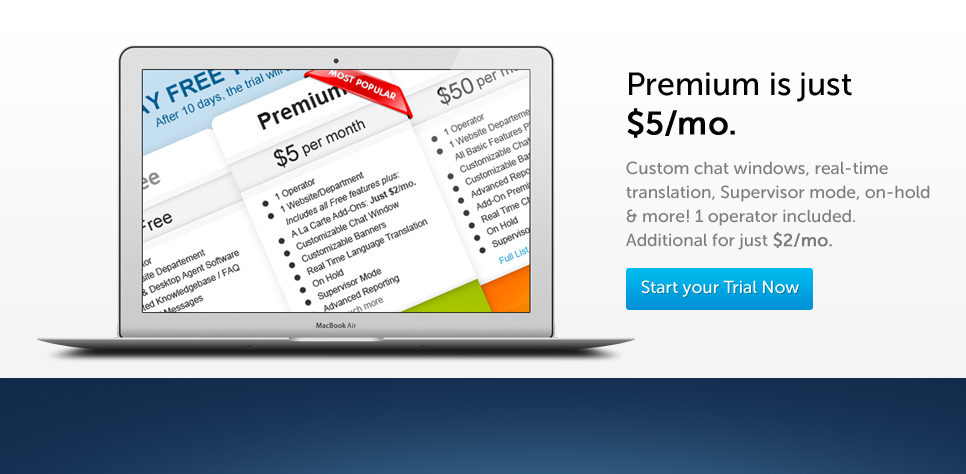
Try OCC Premium with 10 operators, 3 Departments & SSL for 10 days FREE.
Don`t need Premium? OCC Free includes 1 operator and 1 department.
Free Live Chat Software
With 3 live chat software plans, including a Free Version, OCC has a plan for every company’s needs. Support your small business with Premium or unlock all of OCC’s features with Enterprise!


Real Time Language Translation
 |
Type in your native language with foreign |
Runs on your Platform
 |
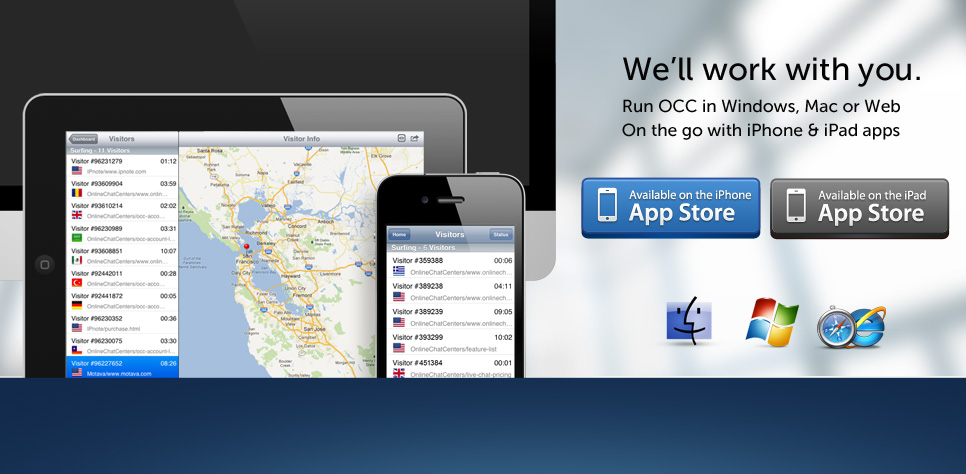
The OCC Agent Desktop App is available for |
All-in-One Dashboard
 |
Control all of OCC`s settngs from one central |
Canned Messages
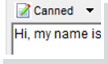 |
Create pre-defined canned |
Dynamic Online/Offline Chat Status
 |
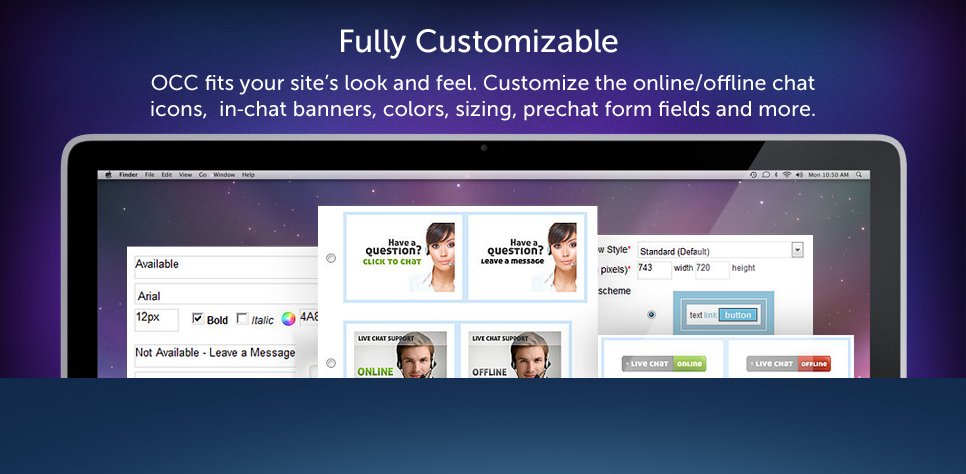
We offer all types of code to place on your |
Easy File Sharing
 |
Send chat visitors files securely through 256 -bit |
256-bit SSL Encryption
 |
Your chats are secure and encrypted with |
Co-Browsing
 |
Follow visitors as they browse your website. You can take control of their browsing session and help them navigate or fill out forms on your site! |
18,000+ Websites Use OCC
OCC has been providing live chat support to over 18,000 websites since 2005. When it comes to connecting business owners with their website visitors in a real time chat, OCC chat support software is proven as the premier software for live support. Join the ideal solution in providing web chat support to your customers and visitors seeking personal advice and expertise.

Testimonials
"OCC has always been there when and if an issue arises..."
|
— Emanuel Benji, Wedding Rings Depot |
 |
"You guys have great customer support. I signed up in 2009, looking for a low-cost, easy-to-use Live Chat alternative and have never looked back. I appreciate all the work you guys do."
|
— Jonathan S., UB-04 Software |
 |
"We have used OCC for the past few years now and it\\'s really changed the way we work. Instant online chat is often the quickest way to get an answer to our customers."
|
— Adam Hughes, Last Minute Musicians |
.jpg "Last Minute Musicians") |
"The OCC chat tool is easy to use and install. We love the feature that notifies us that someone is visiting our site and the option to chat with the site visitor..."
|
— Jessica Samuels, Veristream, LLC. |
 |

